Downloading, Installing, Running

and Buying JpegSizerTM

This page provides step-by-step instructions for:

   Downloading and installing JpegSizer on your system

   Running the JpegSizer program

   Buying JpegSizer and entering your registration code

This page is long, but most of it is pictures. The procedure is very easy to follow.

You might want to print this page for reference as you follow the instructions.

Downloading and Installing JpegSizer

Note: This procedure assumes you are using Windows XP. If not, the procedure might be slightly different.

1. If you have an earlier copy of JpegSizer running on your system, exit it now (from the program's File menu, choose Exit). 

2. Using your web browser, get the latest JpegSizer installer by visiting this page:

For English: http://www.tangotools.com/jpegsizer/download.htm  

For Spanish: http://www.tangotools.com/es/jpegsizer/download.htm  

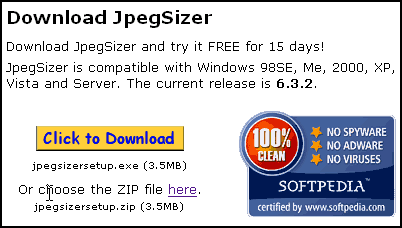
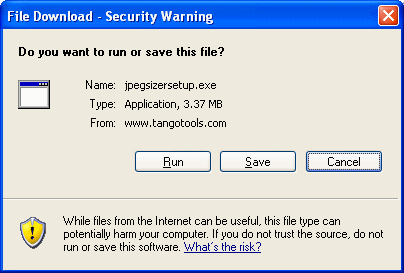
3. Click the Download button near the top of the page. You may see a warning message similar to this:

JpegSizer is safe to install. It has been verified as "100% Clean" by Softpedia.com, and has been checked by the technical experts at download.com.

4. Click the Run button (if offered) or Save button.

If you selected the Save button, choose a suitable location to save the file. Using your Windows Desktop keeps things simple. After downloading is completed, locate the file and double-click it.

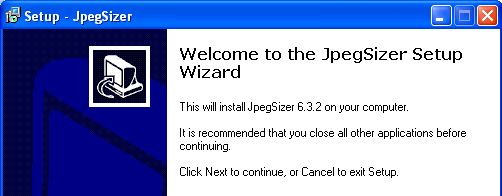
5. The JpegSizer installer will now run. 

If you get a second security warning message, click the new Run button provided. 

6. In this first installer window, click the Next button.

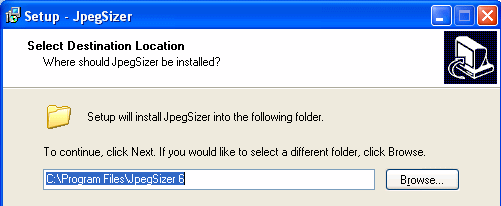
7. By default, JpegSizer will be installed in the Program Files folder on your system drive (usually C:). If you are using a Windows user account without administrator privileges, the default location will be different. 

Note: If you already have JpegSizer installed on your system, the new one will by default be installed in the same folder. You can safely install into this old folder or any other of your choice.

If you'd like to install JpegSizer somewhere else, click the Browse button and locate a suitable folder.

8. Click the Next button.

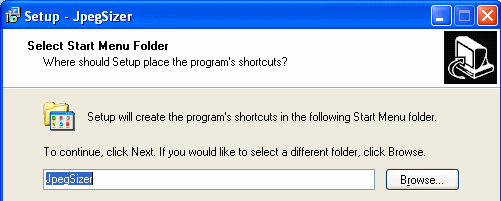
9. By default, the installer provides access to JpegSizer by clicking the Windows Start button, then choosing Programs and JpegSizer. Normally you don't need to change this.

10. Click the Next button.

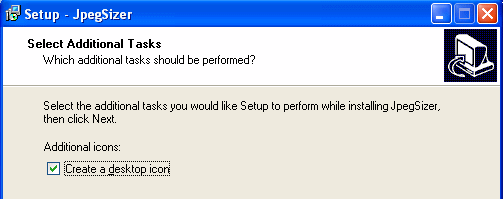
12. We strongly recommend that you choose this option to provide easy access to the program:

13. Click the Next button.

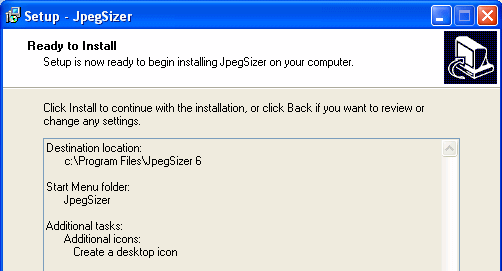
14. The installer is now ready to proceed. If you see any errors on the screen, click the Back button to make corrections.

15. When the information is correct, click the Install button.

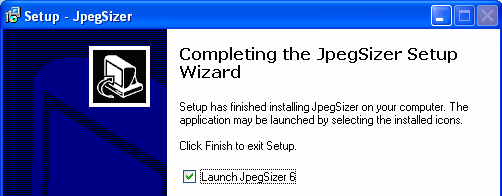
16. Congratulations! JpegSizer is now installed on your system. 

17. If you'd like to use JpegSizer right away, check the box labeled Launch JpegSizer 6.

18. Click the Finish button.

Running the JpegSizer Program

1. Depending on the choices you made when installing JpegSizer, you can run the program using one or more of these methods:

   Double-click the JpegSizer icon on your Windows Desktop (if available).
   From the Windows Start menu, choose Programs, then JpegSizer, then JpegSizer 6.


2. If you're running the free trial version of JpegSizer, you'll see the window above. To evaluate the Home or Pro version of the program, click the appropriate Evaluate button. You can choose which version to use every time you use the program.

3. JpegSizer is now ready for use. For assistance, refer to the Help menu on the program's main menu bar.

The free trial version of JpegSizer can be used for 15 days after installation. After that time, you will need to buy the program. See below.

Buying JpegSizer and Entering Your Registration Code

After purchase, you are provided with a registration code that converts your free trial version of JpegSizer into the paid Home or Pro version. You do not need to download a new copy of the program.

1. To buy JpegSizer, run the program (as explained in the previous section), then choose Buy JpegSizer Online from the Help menu. Or use your web browser to visit

For English: http://www.tangotools.com/jpegsizer/register.htm

For Spanish: http://www.tangotools.com/es/jpegsizer/register.htm

2. After buying the program, you will be returned to a web page with your registration code. This will be confirmed via email. This email normally arrives within 20 minutes. Please print a copy of the email for safe keeping.

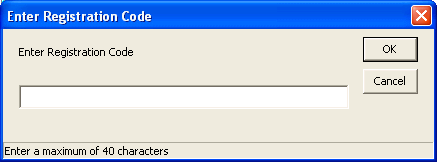
3. To enter your registration code, run the JpegSizer program, then choose Enter Registration Code from the Help menu.

4. Enter your code, taking care to avoid errors. Using copy-and-paste is recommended.

Note: Make sure to use your registration code, not the transaction number or other references from your purchase. A registration code has 16 letters and numbers. The only letters used are A through F.

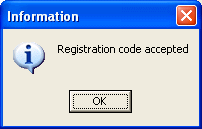
5. After your registration code is accepted, your free trial version of JpegSizer is automatically converted into the paid version you purchased (either Home, Pro or Plus). The paid versions have no expiration date.

6. If you purchased the Home or Pro version and later decide you want to upgrade to a more powerful version, an upgrade is available. Just repeat this procedure and select the upgrade when you make your purchase.

© Copyright 2008 by TangoTools.com